Mouse Cursor

Welcome To Mani Mishra Tips and Tricks


Visiters

Template Information

Mani Mishra Tips and Tricks

Background Song


IP Address Finder 3
  ------------------------------------------------- ****** ------------------------------------------------- 

Monday, February 04, 2013

Know your seat UB,MB,LB,SU,SM,SL in all coach

  Seat|Berth


SL- Sleeper

 
UB- Upper Berth
MB- Middle Berth
LB- Lower Berth
SU- Side Upper
SM- Side Middle
SL- Side Lower
68

65
60

57
52

49
44

41
36

33
28

25
20

17
12

09
04

01
69
66
61
58
53
50
45
42
37
34
29
26
21
18
13
10
05
02
70
67
62
59
54
51
46
43
38
35
30
27
22
19
14
11
06
03

71

72
63

64
55

56
47

48
39

40
31

32
23

24
15

16
07

08


Garib Rath 81 berth

76

73
67

64
58

55
49

46
40

37
31

28
22

19
13

10
04

01
77
74
68
65
59
56
50
47
41
38
32
29
23
20
14
11
05
02
78
75
69
66
60
57
51
48
42
39
33
30
24
21
15
12
06
03

79
80
81
70
71
72
61
62
63
52
53
54
43
44
45
34
35
36
25
26
27
16
17
18
07
08
09


3AC - AC Sleeper 3 Tier

60

57
52

49
44

41
36

33
28

25
20

17
12

09
04

01
61
58
53
50
45
42
37
34
29
26
21
18
13
10
05
02
62
59
54
51
46
43
38
35
30
27
22
19
14
11
06
03

63

64
55

56
47

48
39

40
31

32
23

24
15

16
07

08


2AC - AC Sleeper 2 Tier

45

43
39

37
33

31
27

25
21

19
15

13
09

07
03

01
46

44
40

38
34

32
28

26
22

20
16

14
10

08
04

02


41

42
35

36
29

30
23

24
17

18
11

12
05

06


AC - Executive Chair Car ( Shatabdi)

   
Window Seat
Middle Seat
Aisle Seat

45

44

37

36

29

28

21

20

13

12

05

04

46

43

38

35

30

27

22

19

14

11

06

03


42

39

34

31

26

23

18

15

10

07

02


41

40

33

32

25

24

17

16

09

08

01


AC - Chair Car ( Shatabdi)


67

65

60

55

50

45

40

35

30

25

20

15

10

05

66

64

59

54

49

44

39

34

29

24

19

14

09

04


63

58

53

48

43

38

33

28

23

18

13

08

03


62

 57

52

47

42

37

32

27

22

17

12

07

02


61

 56

51

46

41

36

31

26

21

16

11

06

01


AC - Chair Car ( Shatabdi - New Coach)

75

70

65

60

55

50

45

40

35

30

25

20

15

10

05
74

69

64

59

54

49

44

39

34

29

24

19

14

09

04
73

68

63

58

53

48

43

38

33

28

23

18

13

08

03

                        
72

67

62

 57

52

47

42

37

32

27

22

17

12

07

02
71

66

61

 56

51

46

41

36

31

26

21

16

11

06

01


2AC/3AC


60

57
52

49
44

41
36

33
28

19
15

13
09

07
03

01
61
58
53
50
45
42
37
34
29
20
16
14
10
08
04
02

62
59
54
51
46
43
38
35
30

63

64
55

56
47

48
39

40
31

18
17

12
11

16
05

06

54491-92-12AD744A50A92026ACE7EECB3F7BC33B

Sunday, February 03, 2013

Cube Desktop for All Windows

Cube Desktop for All Windows


Cube Desktop having 6 faced desktop......


  • Maintain 6 desktops by using this software.
  • Change your desktop in the form of cuboid and you can see these six faces in different angles.
If u want to download Cube Desktop Click here
54491-92-12AD744A50A92026ACE7EECB3F7BC33B

Friday, February 01, 2013

Panda Antivirus Pro 2013

Panda Antivirus Pro 2013

The Panda Antivirus Pro is same as a Microsoft Security Essential. Panda provide a protection against Virus, Spyware, Root kits, Hackers and Online Fraud.

Features of Panda Antivirus

  • Real-Time protection.
  • Protection against Spyware, phishing, root-kits and Trojans.
  •  New web filter for Safe browsing.
  • Firewall-Block intruders and hackers, even on your wireless network.
  • Vaccinate your USB flash drivers against infections.
  • Complete protection against known and unknown virus attacks.

54491-92-12AD744A50A92026ACE7EECB3F7BC33B

Monday, September 24, 2012

Start Your Computer With Voice Welcome Message

Welcome Voice Message During Logon Windows

Your Windows PC Welcomes You With Voice Message during the Windows
Logon Time. You Not Need To Install Additional Software You Only Need To Paste VB Script In Notepad. It's Very Simple. Just Follow Below Steps.

Trick To Get Welcome Voice Message After Logon Windows PC.

Steps :-

1 > First Of All Copy Following Script In Notepad.

Dim speaks, speech
speaks="Hello Mani Mishra, Welcome to your Computer. Please use me with care and Love."
Set speech=CreateObject("sapi.spvoice")
speech.Speak speaks


2 > Save This File as .VBS Extension Like Speech.vbs


3 > Now Click On Start Button and Click All Programs.


4 > Then Right Click On Startup Folder and Click On Explore.


5 > Now Paste Speech.vbs File tn This Folder.


6 > Now Your Computer Speech Welcome Message During Logon Time.
      Restart Your PC and Check This.
54491-92-12AD744A50A92026ACE7EECB3F7BC33B

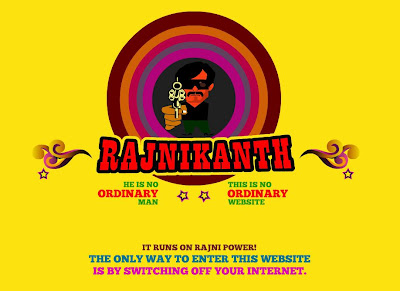
Rajnikant's Website Runs Without Internet Connection

Website Of Rajnikant Runs Without Internet


No Joke this! Rajnikant's Website Really Runs Without Internet Connection.
Only when the Web is disconnected, one is allowed to explore the site.
If Such warnings come ,then make sure that you have disconnected you internet connection.


This Website Created by the Gurbaksh singh. He says that this website is based on a Complex Algorithm running in the back-end side.

 Rajnikant's Website


If You like this website than share it with your friends.
54491-92-12AD744A50A92026ACE7EECB3F7BC33B

Saturday, September 22, 2012

How To Check The Validity Of IMEI Number Of A Mobile Phone

  Check The Validity Of IMEI Number Of A Mobile Phone


IMEI stands for The International Mobile Equipment Identity. 

It is a number unique to every GSM and WCDMA and iDEN mobile phone as well as some satellite phones. It is usually found printed on the phone underneath the battery.

All mobile phones are assigned a unique 15 digit IMEI code upon production. You can find it by typing *#06# on your handset.

All mobile phones are assigned a unique 15 digit IMEI code upon production. Below you can check all known information regarding manufacturer, model type, and country of approval of a handset.


54491-92-12AD744A50A92026ACE7EECB3F7BC33B

Saturday, September 15, 2012

How to Increase Your Broadband | GPRS Internet | Bandwidth Speed in Windows XP SP2

  Connection Speed 20% Increase in Windows XP


Bandwidth, in terms of computer networking, is the measure of data transfer speed. Accessing Internet with high speed has always been first choice of every net users. But due to lack of infrastructure available in most of places, only limited internet speed | bandwidth is available to most of the internet | broadband users.

Where do you get the Hidden Internet Bandwidth

In Windows XP there is some amount of internet bandwidth reserved | hidden itself by Windows. So today I am telling you that hidden trick | tweak available in Windows XP (SP2 & above) to increase your internet speed | bandwidth by 20%. Actually, this 20% of Internet Bandwidth is reserved by Windows to perform Windows Update & such other tasks. Since, Windows is not always required to be updated, you can enjoy this reserve Internet Bandwidth for your System for faster internet.

How to Increase Your Broadband | GPRS Internet | Bandwidth Speed in Windows XP SP2


Easy steps involved for increasing internet | broadband speed are listed below. The first list contains only steps in short but in the second list you will find steps to boost your internet speed along with screenshots.

Steps to Boost Internet | Broadband | GPRS Speed

  1. Click on Start Button   >>>  Run  >>>  Type in there "GPEDIT.MSC"  [do not include quote(" ") there] >>> HIT "ENTER" Key.
  2. Doing this opens a Window Titled "Group Policy".
  3. This Window contains a Tree View like structure in the Left Pane.
  4. On that Tree Structure Click on: Local Computer Policy  >>>  Computer Configuration  >>>  Administrative Template  >>>  Network  >>>  QOS Packet Scheduler.
  5. You can now see "Limit Reservable Bandwidth" appeared in the Right Pane of the Window.
  6. Now, Double Click on the "Limit Reservable Bandwidth", this will Open a Pop-Up window (which may say it that "Limit Reservable Bandwidth" is not configured but do not worry and proceed).
  7. Now, Click on Enabled and type 0 [i.e. fill in ZERO] in the Bandwidth limit (%) Box.
  8. Finally, Click on Apply  >>>  OK.
  9. Done, you can now easily observe it that your internet speed is increased by 20%.

Easy Steps with Snapshots on How to Increase GPRS | Broadband | Internet Speed in Windows XP

  1. Click on Start Button   >>>  Run  >>>  Type in there "GPEDIT.MSC"  [do not include quote(" ") there] >>> HIT "ENTER" Key.


    Increase Internet Speed : Step 1 (a)
     

    Increase Internet Speed : Step 1 (b)

  2. Doing this opens a Window Titled "Group Policy".


    Increase Internet Speed : Step 2

  3. This Window contains a Tree View like structure in the Left Pane.


    Increase Internet Speed : Step 3

  4. On that Tree Structure Click on: Local Computer Policy  >>>  Computer Configuration  >>>  Administrative Template  >>>  Network  >>>  QOS Packet Scheduler.


    Increase Internet Speed : Step 4

  5. You can now see "Limit Reservable Bandwidth" appeared in the Right Pane of the Window.


    Increase Internet Speed : Step 5

  6. Now, Double Click on the "Limit Reservable Bandwidth", this will Open a Pop-Up window (which may say it that "Limit Reservable Bandwidth" is not configured but do not worry and proceed).


    Increase Internet Speed : Step 6

  7. Now, Click on Enabled and type 0 [i.e. fill in ZERO] in the Bandwidth limit (%) Box.


    Increase Internet Speed : Step 7

  8. Finally, Click on Apply  >>>  OK.


    Increase Internet Speed : Step 8

  9. Done, you can now easily observe it that your internet speed is increased by 20%.
54491-92-12AD744A50A92026ACE7EECB3F7BC33B

Friday, September 14, 2012

SBI ATM Card to Card Money Transfer through ATM

Instant Money Transfer from SBI ATM | Debit Card to Card |


State Bank of India (SBI) is the state-owned largest banking and financial services company in India by revenue, assets and market capitalization. SBI is also known as “Banker to every Indian”. SBI provides State Bank ATM-cum-Debit Card facility through which an SBI accountholder can withdraw cash or do many stuffs FREE through any of over 26,000 ATMs of State Bank Group within the country. Now you dont need to visit the branch or login to your Online SBI Account to transfer money to the SBI beneficiaries (to whom money is to be transferred). Instead you can use SBI Card to Card Transfer facility provided by SBI.

How to Transfer Money through State Bank ATM

If you require transferring some money from one SBI Account to another SBI Account through State Bank ATM, you can see there is no option to transfer directly to SBI bank account. Instead, you can make use of card to card transfer from SBI ATM. In card to card transfer, the money in your account gets transferred to account number of beneficiary’s debit card number of state bank group. As a result, you can say it that card to card money transfer is as same as transferring money to another bank account


Steps to Avail Card to Card Money Transfer Facility

  To manipulate State Bank card to card fund transfer facility you can follow the following steps:

  • Swipe your debit card of State Bank of India.
  • Choose Transfer option (from the various option listed on the screen after swiping your ATM card. Transfer option could be seen at the right bottom side of the ATM screen.)
  • Enter the PIN (after selecting Transfer option you will be asked to Enter the PIN. You have to enter your ATM Card PIN Number there.)
  • Choose Card to Card Transfer option (from the various option listed on the screen after entering the PIN.).
  • Enter Beneficiary’s Debit Card Number (you have to enter the 19-digit debit card number of the beneficiary to whom the money is to be transferred).
  • Enter Again Beneficiary’s Debit Card Number (you will be asked twice to enter the debit card number of the beneficiary for confirmation).
  • Enter Transferable Amount (you can now enter the amount of money which you want to transfer to the beneficiary’s account).
  • Select account type (you will be asked to choose your account type from either Savings or Checking).
  • Transaction Completed (your transaction is completed now and the amount of money is credited instantly to the recipient’s account).

Things you must have for SBI Card to Card Transfer

For availing SBI Debit Card to Debit Card money transfer facility you must have these two:
  • your debit card, and
  • debit card number of beneficiary (to whom money is to be transferred)

When and Where Card To Card Transfer can be Availed

SBI debit card to debit card money transfer can be used to shift money from one SBI account to another SBI account. This facility is available on all the 26,000+ ATMs of State Bank group and 24x7 (round the clock).

SBI Card to Card Transfer Limit

A present, limitation for State Bank of India card to card transfer facility is:
  • Per transaction limit- You can transfer a maximum of Rs 15,000/- per transaction.
  • Per day limit- A maximum of Rs 30,000/- can be transferred per day from one debit card to another.
  • Number of transactions limit- An SBI ATM cardholder can do at most to transactions per day for card to card money transfer.

54491-92-12AD744A50A92026ACE7EECB3F7BC33B

Download AVG Free AntiVirus Installer Setup

AVG AntiVirus Latest Version


For instant download of latest AVG Free AntiVirus, you can click on one of the links (either for 32-bit or 64-bit according to your computer type), save the installation file of AVG Free Edition on your hard drive and then install it. These links are for downloading latest version AVG Free Anti-Virus offline installer setup.


       Download AVG AntiVirus Latest Version

Download AVG Free Edition 2013.0.2667 (32-bit)


Download the latest AVG free antivirus (i.e. AVG Free Edition 2013.0.2667) for 32 bit computers is:

Download AVG Free Edition 2013.0.2667 (32-bit)
File Size: 118.78 MB (124,547,976 bytes)   Released on: 07-Sep-2012


  Download AVG Free Edition 2013.0.2667 (64-bit)


Download the latest AVG free antivirus (i.e. AVG Free Edition 2013.0.2667) for 64 bit computers is:

Download AVG Free Edition 2013.0.2667 (64-bit)

  Click Here 

File Size: 130.28 MB (136,606,088 bytes)   Released on: 07-Sep-2012


54491-92-12AD744A50A92026ACE7EECB3F7BC33B